
Monthly archive series: October 2026. Written and first published in October 2026.
The last media check should happen in the place where buyers will see the listing. A delivery folder can be correct while the public page has the wrong cover image, a cropped floor plan, an outdated photograph or a tour link that does not open. Reviewing the upload is a distinct task from approving the original files.
Give one person responsibility for that check and a clear way to report problems. The goal is to confirm that the published presentation matches the approved property information and media set before it is promoted more widely.
Confirm the property and the current files
Check the address, unit identifier and listing context first. Similar properties or multiple units can produce similar-looking filenames. Make sure the photographs, floor plan, tour and video all belong to the offered property and the approved version of the project.
Look for older files that survived an update. A refreshed kitchen image does not help if the cover thumbnail still shows the previous condition. Compare the live set with the approved selection, including any captions that explain seasonal images, shared areas or representative material.
Review the photographs at actual viewing sizes
Check the lead image as a small card and as a full photograph. Confirm that the important subject is not cropped away. Follow the gallery in order and look for duplicates, missing rooms, low-resolution uploads or images that are rotated incorrectly.
Use both a phone and a larger screen. Text that appears readable on a desktop may become too small on a phone, while an apparently minor crop may remove a disclosure or important feature. Our gallery order guide helps assess whether the sequence still explains the property clearly.
Test every supporting destination
Open the tour link from the listing itself, not from a saved delivery message. Follow the initial route and check that the expected property appears. Test a floor-plan view or download and confirm that labels are legible. Play the video and verify that its text, format and ending are the approved version.
If a destination does not support a particular embed or link, use an approved alternative rather than leaving a broken element in place. Confirm the project’s actual hosting and delivery terms when a link is unavailable; do not assume every issue is a simple upload error or that hosting is indefinite.
Read the claims beside the images
Check that room names, amenities and visible conditions agree with the description. Shared spaces should be identified, virtual staging should remain clearly disclosed, and relevant seasonal differences should be understandable. A label that was present in the delivery can be lost during cropping or upload.
Remove unsupported promises rather than hoping the photograph will justify them. An image cannot establish legal boundaries, approved use, exact measurements or equipment performance by itself. Keep those claims tied to verified information supplied through the appropriate property professionals.
Close the loop on corrections
Record each issue with the page or platform, filename or link, and a concise description. Assign it to the person who controls that destination. A correction to the master file may still need to be applied separately to a brochure, social post or syndicated listing source.
Our media handoff guide explains how to keep the agent, seller and upload team working from one approved set. After a correction, revisit the affected public view and confirm the result rather than marking the task complete when the replacement file is sent.
Keep a short completion note identifying the reviewed destinations and any remaining limitation. The listing is ready for promotion when the property is correctly identified, the media opens and displays properly, and the images and words tell the same accurate story. This final pass protects the work already invested in preparation, capture and editing by checking the version the audience will actually encounter.
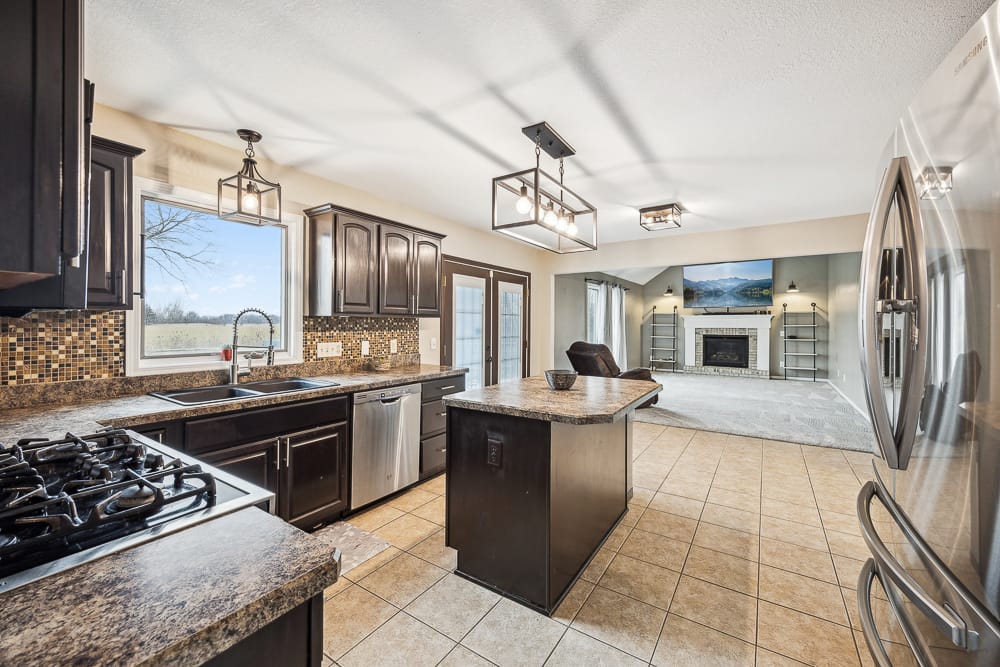
Photograph from the TREM419 property media library, used to illustrate this guide.